By the Cyber Make team · Last updated October 17, 2026
An STL file is a 3D model saved as a mesh of tiny triangles that describe the outside surface of an object. It is the most common file type for 3D printing. You open it in a slicer program, which turns the shape into layer-by-layer instructions your printer can follow.
Short answer: STL is a simple, widely supported 3D file format that stores only surface geometry as triangles. It has no color, no materials and no built-in units. Almost every slicer opens STL files, so it is the standard way to share and sell printable models. You load it, set the scale, slice it and print.
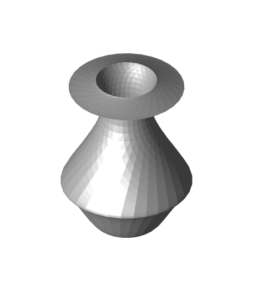
An STL file holds a list of triangles. Each triangle is stored as three corner points (vertices) plus a “normal”, a small arrow that shows which side of the triangle faces outward. Put thousands of these triangles together and you get a closed surface, like a skull, a vase or a phone stand.
That is all it holds. An STL file has no color, no textures, no material settings and no print settings. It also does not store how the object should sit on the print bed. Your slicer handles all of that.
Curves are approximated with flat triangles. A model with more triangles looks smoother but makes a bigger file. When a designer exports an STL from CAD software, they pick the resolution. Too low and round parts print with visible flat facets.
The format dates back to 1987, when it was created for 3D Systems’ first stereolithography machines. The name is usually linked to “stereolithography”, though you will also see it expanded as “Standard Triangle Language” or “Standard Tessellation Language”.
STL files store plain numbers with no unit attached. A coordinate of 50 could mean 50 millimeters or 50 inches. Most slicers assume millimeters, and most designers for 3D printing work in millimeters, so files usually load at the right size.
Problems start when a model was designed in inches or meters. A part meant to be 2 inches tall may appear 2 mm tall, almost invisible on the bed. A model built in meters can load huge. The fix is simple: check the size readout in your slicer before you slice.
STL comes in two versions that hold the same geometry. ASCII STL is plain text: you can open it in a text editor and read lines that start with “solid”, “facet normal” and “vertex”. Binary STL stores the same numbers in compact form.
Binary STL files are much smaller, often around a fifth of the ASCII size for the same model. A binary file has an 80-byte header, a triangle count and then 50 bytes per triangle. Almost all files you download are binary. Your slicer opens both types the same way, so you rarely need to care which one you have.
STL is not the only 3D format you will run into. Each one was built for a different job. This table shows the main differences for people who print at home.
| Format | What it stores | Units | Color | Best for |
|---|---|---|---|---|
| STL | Triangle mesh of the surface only | Not stored | No | Sharing and printing single-color models; works in every slicer |
| 3MF | Mesh plus units, colors, materials, multiple parts and often slicer settings | Stored | Yes | Saving full print projects, multi-color prints |
| OBJ | Mesh, often with texture and color data in a separate file | Not stored | Yes, via textures | 3D graphics, games, scanned models with color |
| STEP | Exact CAD geometry (true curves and solids, not triangles) | Stored | Limited | Editing in CAD and engineering parts that need precise dimensions |
For most hobby prints, STL is all you need. 3MF is a good way to save your own project once you have set up supports and settings. STEP is the better choice if you plan to modify a mechanical part in CAD, because it keeps exact curves instead of triangles.
The easiest way is a free slicer. You will need one to print anyway, and it lets you rotate, measure and scale the model. All of these are free and run on Windows and macOS (most also on Linux):
On Windows, the built-in 3D Viewer app can preview STL files if it is already installed. Microsoft has deprecated it and removed it from the Microsoft Store in 2026, so a slicer is the more reliable choice. On a Mac, Finder’s Quick Look (press the space bar on a file) can usually show a preview.
Once your file opens, our step-by-step guide to 3D printing an STL file walks you through orientation, supports and settings.
A good STL should be “watertight”: a fully closed surface with no gaps, like a balloon. Files exported badly or edited carelessly can break this rule. The slicer then struggles to tell what is inside the part and what is outside.
Most slicers fix small errors on import. PrusaSlicer and OrcaSlicer show a warning icon and repair the mesh automatically. Cura has “Mesh Fixes” options such as “Union Overlapping Volumes” and “Remove All Holes”.
Always check the layer preview after slicing. Scroll through the layers and look for missing walls or gaps. For bigger damage, free mesh tools such as Meshmixer or Blender can close holes and remove bad geometry.
There are three main ways to get an STL file. Most beginners start by downloading, then learn some CAD later.
Cyber Make sells STL files as instant downloads, from $1.99 to $7.99 each. Popular starting points are Halloween STL files like skulls and pumpkins, home decor models, miniatures and figures and practical household prints.
Yes, but it is harder than editing a CAD file. STL is a mesh, so you can scale, cut, combine or add text in a slicer or mesh editor. For precise changes like moving a hole, a STEP or native CAD file is easier.
Neither is better for every job. STL is simpler and works everywhere. 3MF stores units, colors and print settings, so it is handy for saving a finished print project or multi-color jobs.
Yes. The same STL works for both. Only the slicer and settings change: an FDM slicer for filament printers, or a resin slicer such as Chitubox or Lychee for resin printers.
The file was exported with too few triangles, so curves are made of visible flat faces. A higher-resolution export fixes it. Lowering layer height will not help with this specific issue.